Calendar
Calendars group omitted dates: days when notifications should not be sent according to the configuration that uses the list.
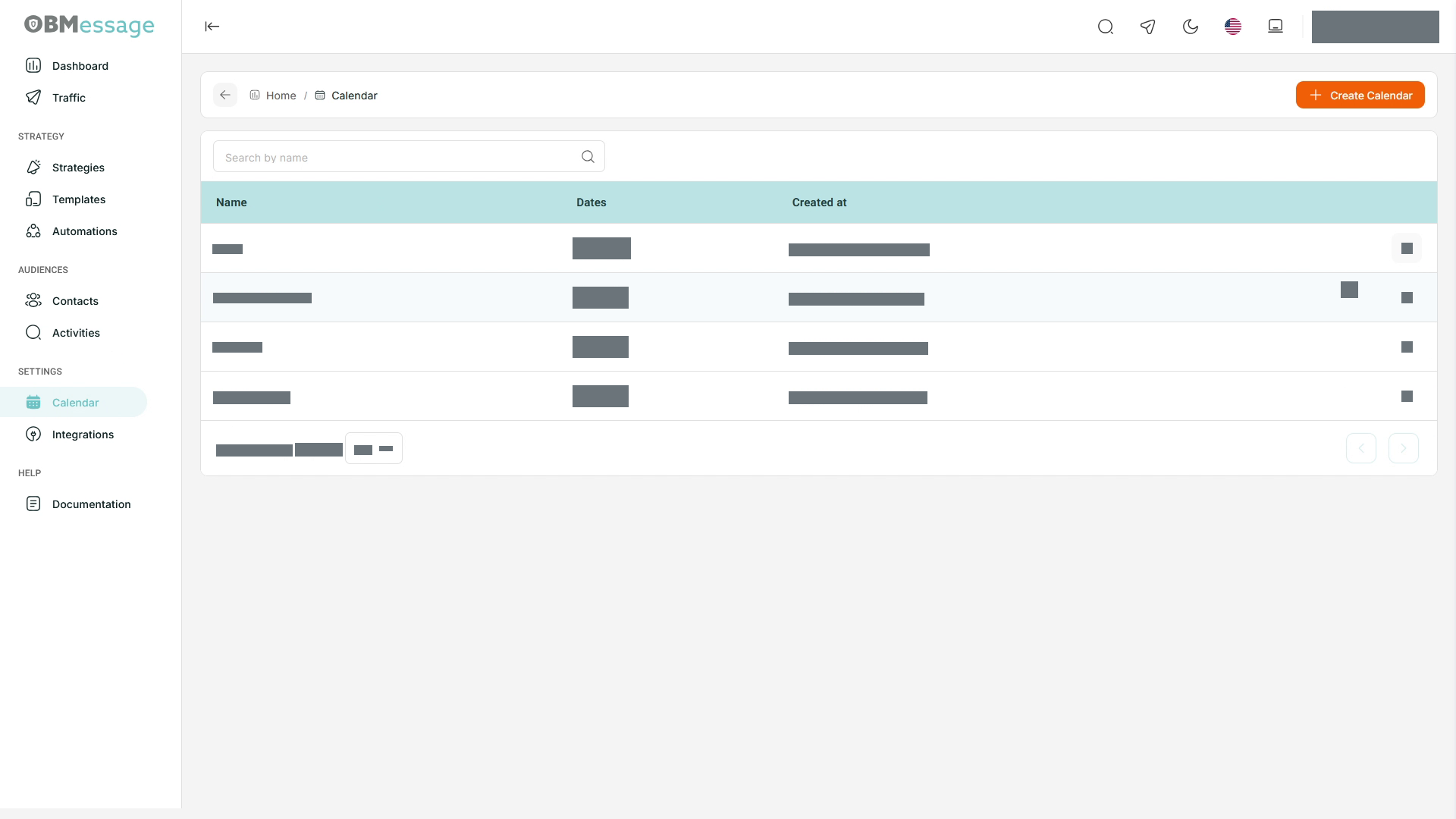
Review calendars
- Open Calendar under SETTINGS.
- Use Search by name to find a list.
- Review Name, Dates, and Created.
- Open Edit from the row menu to review or change its dates.
Create a calendar
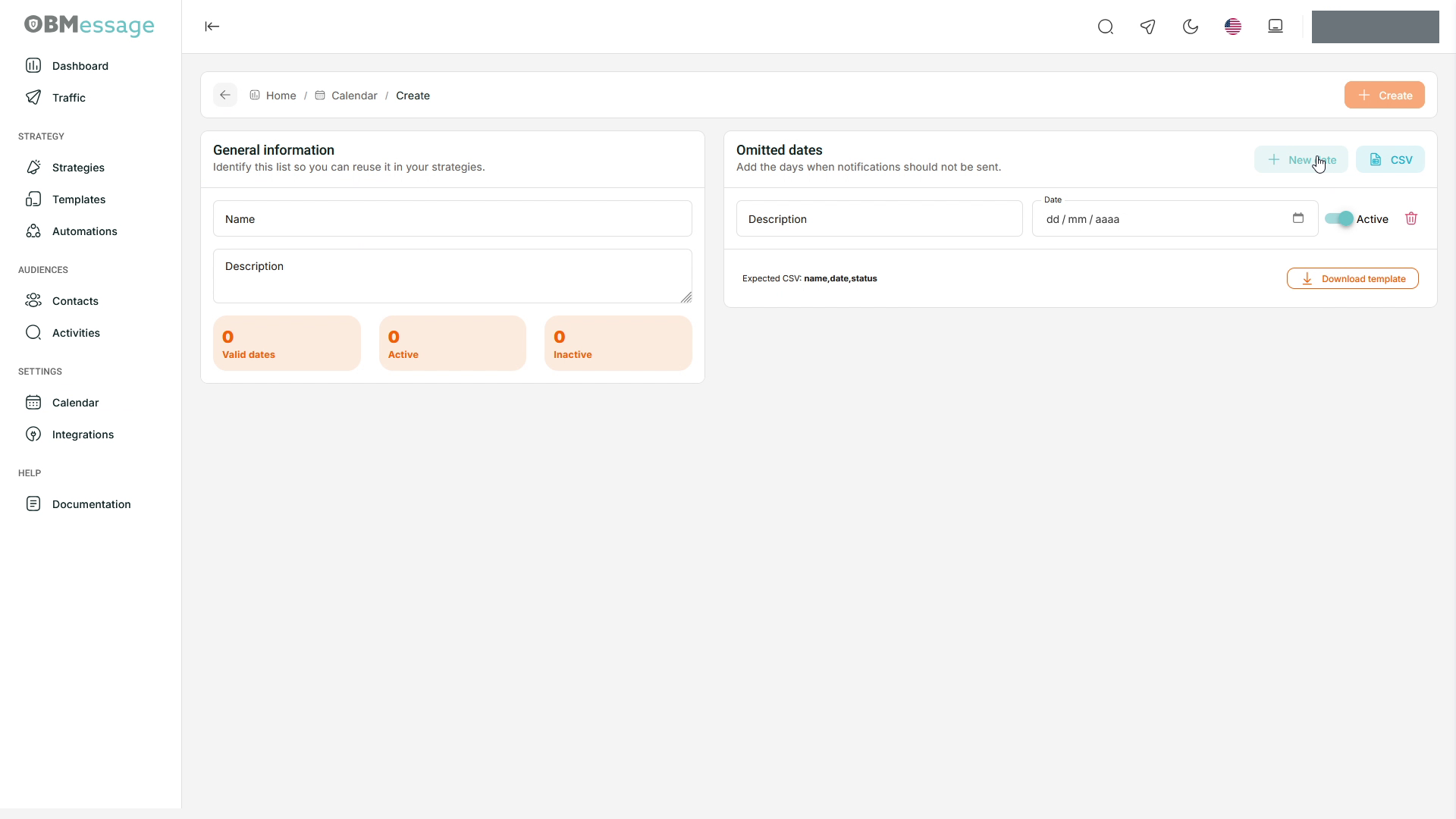
- Select Create Calendar.
- Complete Name and Description under General information.
- Use New date to add dates to omit.
- Complete Description and Date in each row and check the Active switch.
- Review the valid, active, and inactive date counters.
- Confirm with Create and check the result in the list.
Edit a list
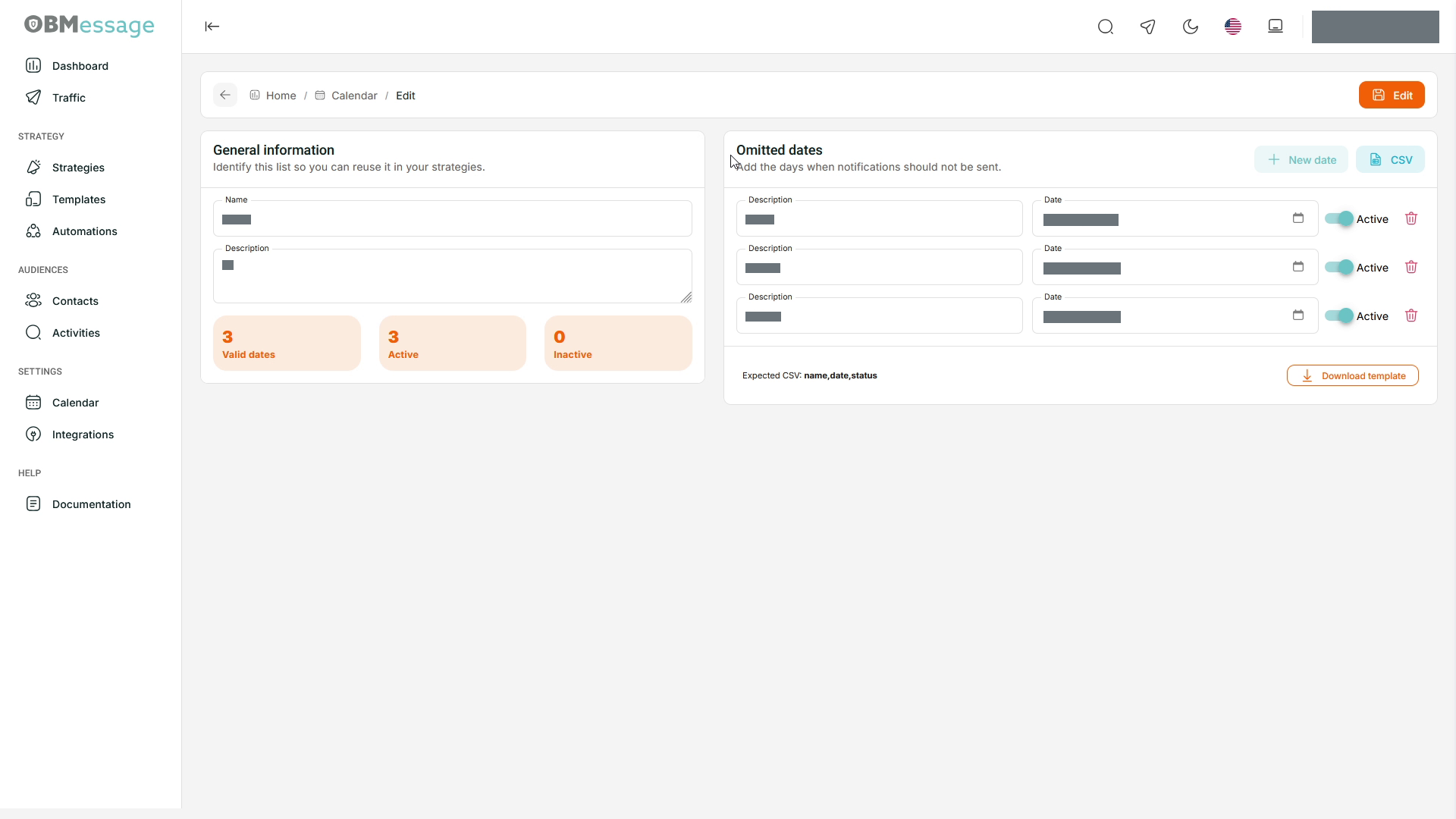
- Select Edit on the calendar row.
- Update the general information or Omitted dates rows.
- Use New date to add another date or the delete icon to remove a row.
- Check which dates are active and confirm changes with Edit in the header.
Import or export dates
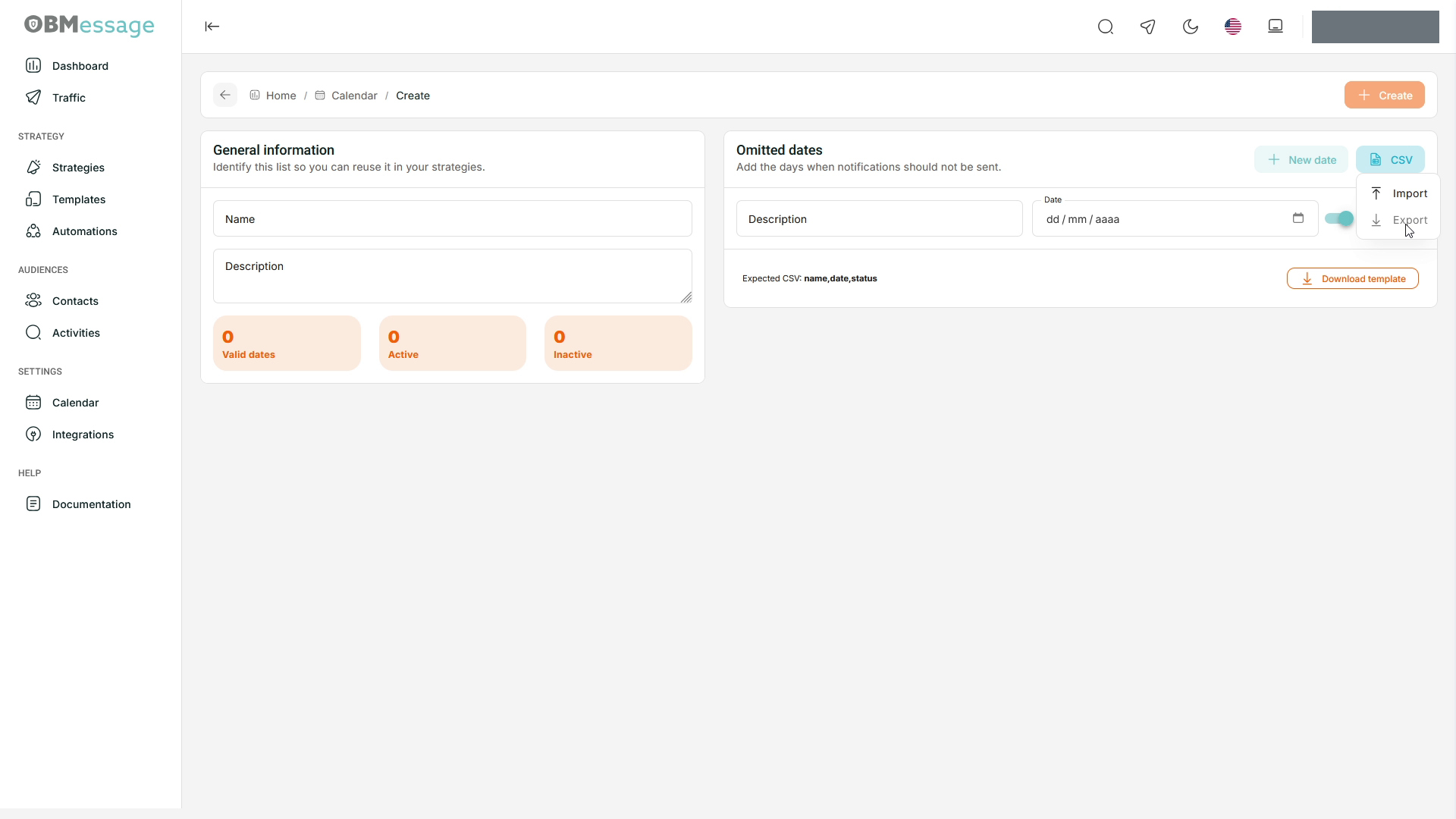
- Use Download template to check the file format.
- Prepare the
name,date,statuscolumns using the downloaded template. - Open CSV → Import and select the file.
- Review the loaded dates and validation messages before confirming the form.
To obtain a file for the list, use CSV → Export.
Check the changes
Reopen the calendar and review the dates and their statuses. The row menu also offers Delete; use it only to remove the entire list.